


How I design a Modern Furniture Admin Dashboard using Bunifu UI
In this article, I’ll walk you through designing a modern, clean admin dashboard for a furniture store built with Bunifu UI for WinForms and inspired by a modern furniture app dashboard concept. By the end, you’ll be able to design your own Furniture Dashboard UI comfortably.
We will be using the latest version of Bunifu UI Framework 9.1.0 and Bunifu Charts 3.0.0 that has new improved control’s set.
How about we have a quick look of what we will achieve by the end of the article:
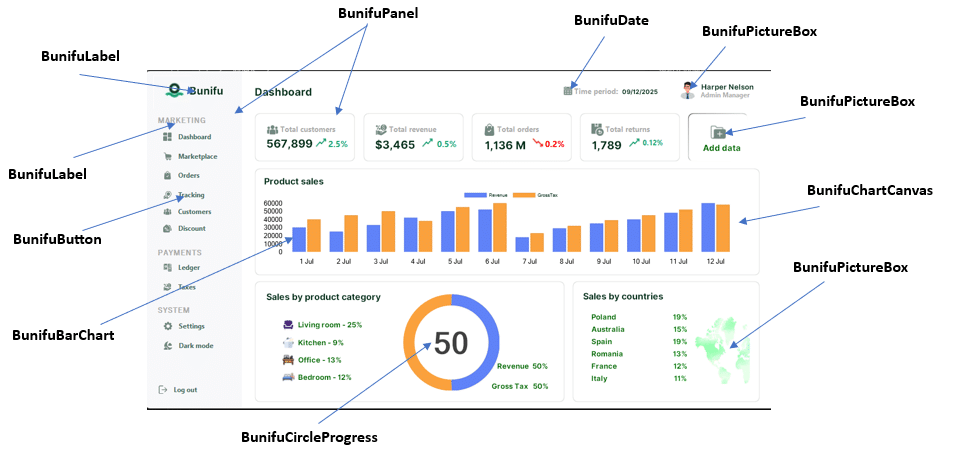
“Your dashboard is your app’s first impression, perfect it with Bunifu.”
Let’s know dive into the journey of building our dashboard, to make it stylish, modern, and enjoyable to use. It’s quite simple while using Bunifu.
Installing the preset requirements:
Make sure you have install visual studio, Bunifu UI, Bunifu Charts.
If you haven’t download the Bunifu framework i recommend you to read the documentation or any reference Bunifu Framework on how to integrate your IDE with it.
For the Icons Download it from microsoft icons.
Let embark in our journey of creating the Dashboard;
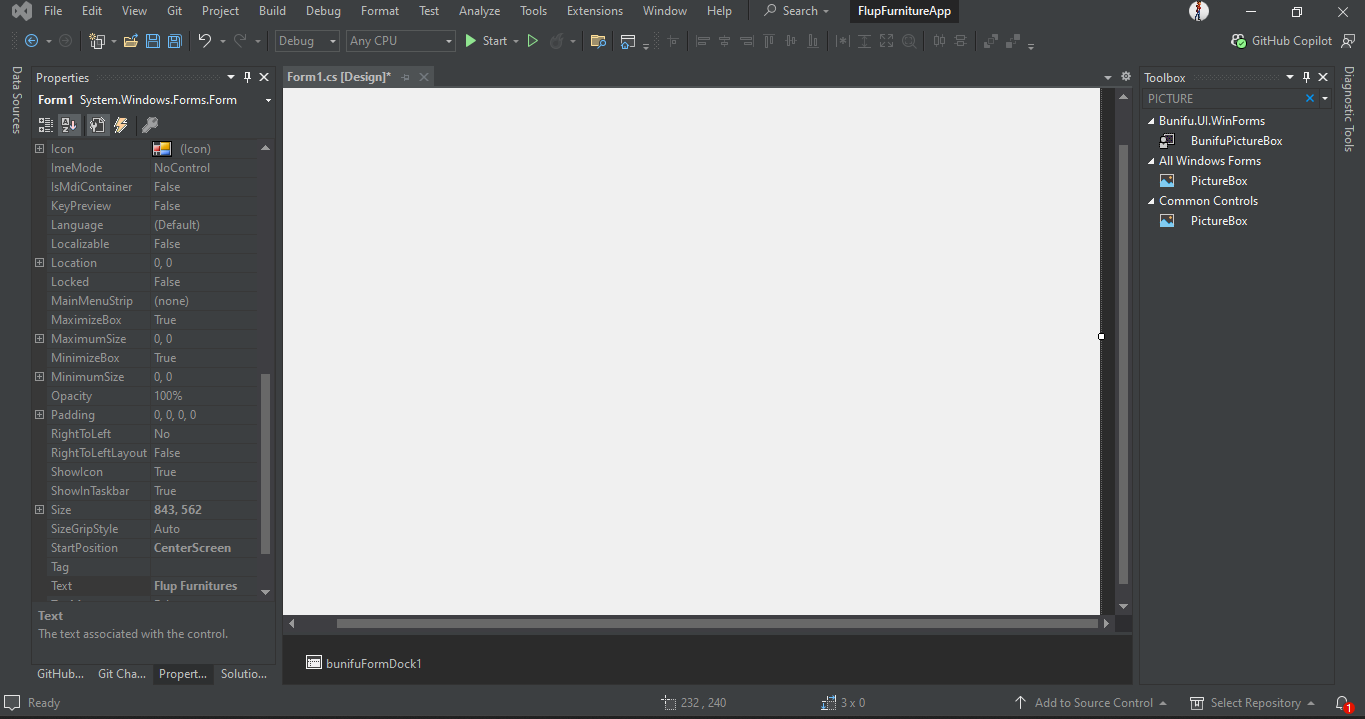
First, Open visual studio and create a new project then it will direct you to Form1 Designer, then set the properties to;
BackColor: white
FormBorderStyle: None
Designing the Sidebar
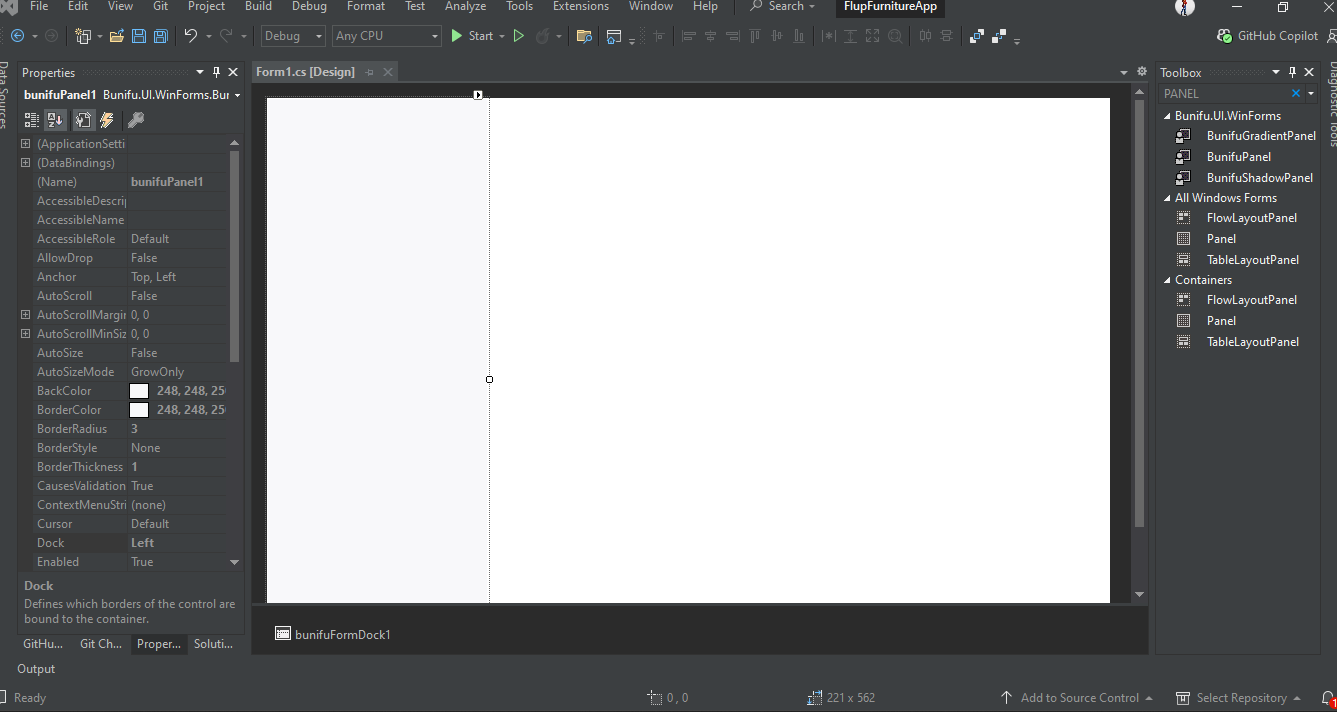
First, Drag and drop BunifuPanel and set its properties to;
Dock: left
backcolor: 248, 248, 250
BorderColor: 248, 248, 250
name: sidebar
Add Navigation Buttons
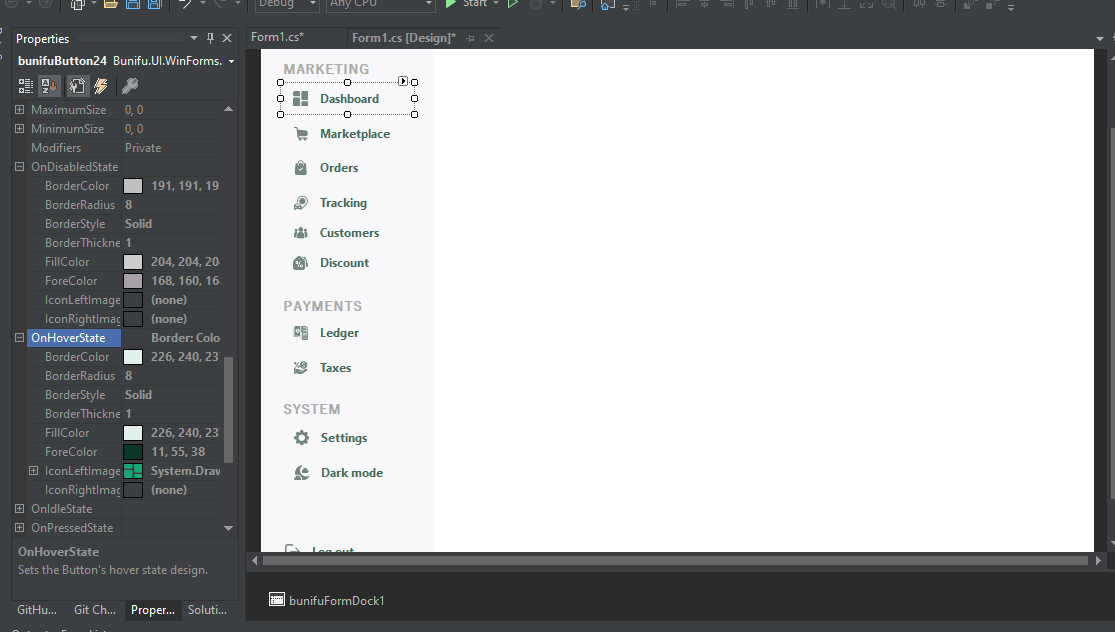
Then, Drag and drop BunifuButtons in your toolbox, and sets its properties as:
OnIdleState
BorderColor: 226, 240, 23
BorderRadius: 8
FillColor: 226, 240, 23
ForeColor: 11, 55, 38
OnHooverState
BorderColor: Transparent
BorderRadius: 8
FillColor: Transparent
ForeColor: 67, 105, 93IconLeft: download from microsoft icons
Then apply to the rest of the buttons.
“Elegance is achieved when nothing else can be removed.” — Leonardo da Vinci
Now lets add the content into our Dashboard;
So, drag your BunifuLabel, BunifuPanel and BunifuPictureBox from your ToolBox and drop inside your Form.
Then set its properties;
BunifuPanel
PanelColor: white
BorderColor: 224, 224,224
inside BunifuPanel;
BunifuPictureBox
image: import the downloaded image
size: 21, 18
Follow for each panel as shown below.
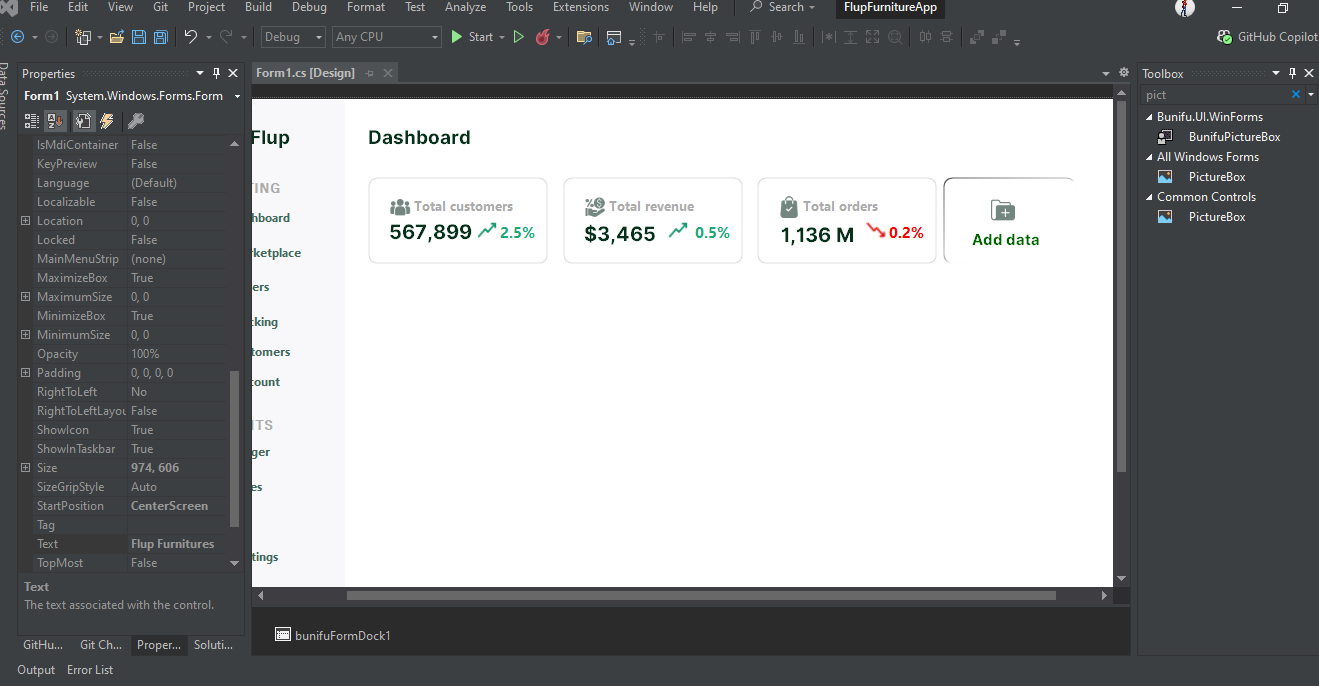
Great! Lets know add Bunifu Charts into our Furniture app.
First, Drag and Drop the BunifuChartCanva, then drag and drop two BunifuBarChart(Gross Tax & Revenue) into your form as shown below;
After you have drag and drop BunifuBarChart from your toolBox, then set its properties as:
Click the play button in bunifuBarchat and set Targetcanvas as BunifuChartCanvas
properties;
Great! You are almost there; Lets now add The sales by product Category into our project;
First, Drag in the bunifuPanel into your form then set the approximate size;
– Drag and drop BunifuLabel and sets its properties as;
Font size : 12
– Drag and drop BunifuCircleProgress and set its properties as;
progressBackColor: 250, 161, 61
progressColor: 96, 130, 248 as shown below
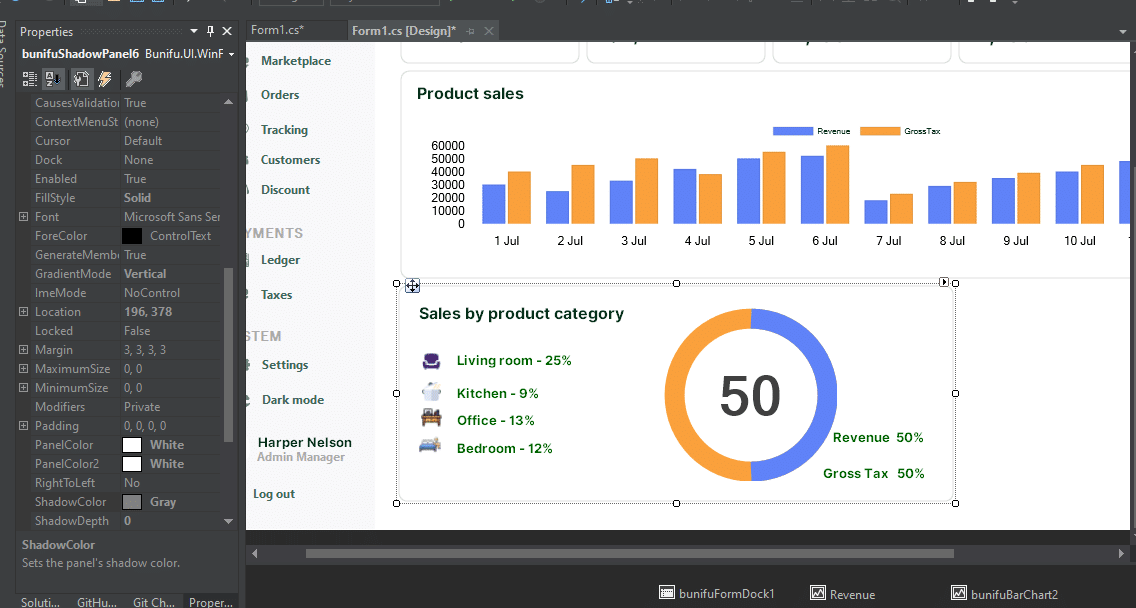
Finally, Adding Sales by Country panel;
First, Add BunifuPanel into your Form then drag and drop BunifuLabels and BunifuPictureBox, then sets its properties as;
– Drag and drop BunifuImageButton and sets its properties as;
choose image from your downloads
size: 126, 150
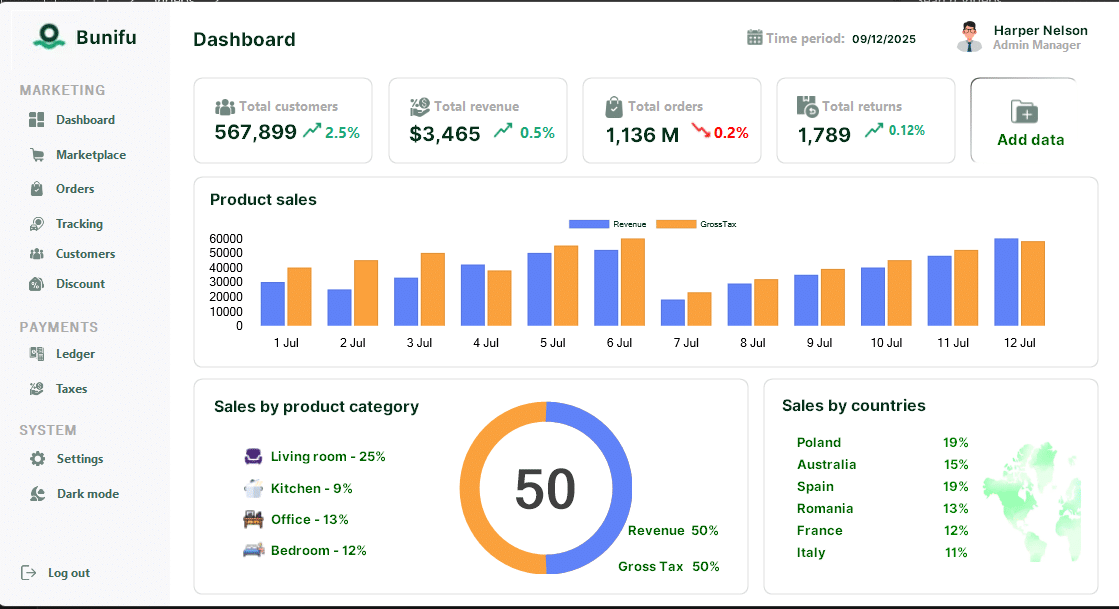

Leave A Comment